Search This Blog

Showing posts with label SQL Backup History. Show all posts

SQL Server:Backup multiple databases Using with Scripts (Include Backup history)

Here is the script that will allow you to backup each database within your instance of SQL Server.  You will need to change the @bupath to the appropriate backup directory.


DECLARE @dbname VARCHAR(100) -- database name
DECLARE @bupath VARCHAR(100) -- path for backup location
DECLARE @filename VARCHAR(100) -- filename used for backup files
DECLARE @datestamp VARCHAR(25) -- date used for backup file timestamp
-- specify database backup directory
SET @bupath = 'D:\DatabaseBackups\'
-- file date formatting
SELECT @datestamp = CONVERT(VARCHAR(20),GETDATE(),112) + REPLACE(CONVERT(VARCHAR(20),GETDATE(),108),':','')
--specify databases to backup
DECLARE db_cursor CURSOR for
SELECT name
FROM master.dbo.sysdatabases
WHERE name NOT IN ('master','model','msdb','tempdb') 
-- excludes these databases, if excluding multiple databases, seprate them by a comma
--backup process
OPEN db_cursor
FETCH NEXT FROM db_cursor INTO @dbname
WHILE @@FETCH_STATUS = 0

BEGIN
   SET @filename = @bupath + @dbname + '_' + @datestamp + '.bak'
   BACKUP DATABASE @dbname TO DISK = @filename WITH INIT,
   CHECKSUM; --init overwrites existing files with the same name, and checksum verifies the backup
       FETCH NEXT from db_cursor INTO @dbname
END
CLOSE db_cursor

--backup History for All Dbs
OPEN db_cursor
FETCH NEXT FROM db_cursor INTO @dbname
WHILE @@FETCH_STATUS = 0
BEGIN
  SELECT bs.database_name, bs.type, bs.backup_start_date, bs.backup_finish_date, DATEDIFF(mi, COALESCE((SELECT TOP 1 bsPrior.backup_finish_date 
  FROM msdb.dbo.backupset bsPrior WHERE bs.database_name = bsPrior.database_name AND bs.backup_finish_date > bsPrior.backup_finish_date 
  ORDER BY bsPrior.backup_finish_date DESC), '1900/1/1'), bs.backup_finish_date) AS minutes_since_last_backup, 
  DATEDIFF(mi, bs.backup_start_date, bs.backup_finish_date) AS backup_duration_minutes, 
  CASE DATEDIFF(ss, bs.backup_start_date, bs.backup_finish_date) 
  WHEN 0 THEN 0 ELSE CAST(( bs.backup_size / ( DATEDIFF(ss, bs.backup_start_date, bs.backup_finish_date) ) / 1048576 ) AS INT) END AS throughput_mb_sec 
  FROM msdb.dbo.backupset bs WHERE database_name = @dbname AND bs.backup_start_date > DATEADD(dd, -14, GETDATE()) ORDER BY bs.backup_start_date
  --select  @dbname from msdb.dbo.backupset
   FETCH NEXT from db_cursor INTO @dbname
END
CLOSE db_cursor
DEALLOCATE db_cursor

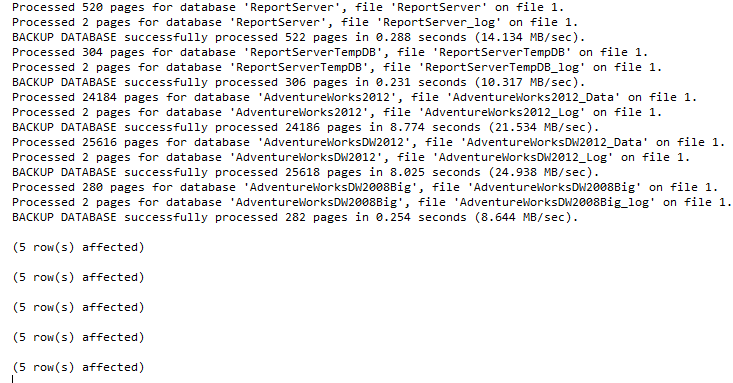
OUTPUT:


SQL Server BACKUP DATABASE command     


(BACKUP DATABASE)  
Overview
There are only two commands for backup, the primary is BACKUP DATABASE.  This allows you to do a complete backup of your database as well as differential, file, etc. backups depending on the options that you use.

Explanation
The BACKUP DATABASE command gives you many options for creating backups.  Following are different examples.

Create a full backup to disk
The command is BACKUP DATABASE databaseName.  The "TO DISK" option specifies that the backup should be written to disk and the location and filename to create the backup is specified.

BACKUP DATABASE AdventureWorks 
TO DISK = 'C:\AdventureWorks.BAK'
GO
Create a differential backup
This command adds the "WITH DIFFERENTIAL" option.

BACKUP DATABASE AdventureWorks 
TO DISK = 'C:\AdventureWorks.BAK' 
WITH DIFFERENTIAL 
GO
Create a file level backup
This command uses the "WITH FILE" option to specify a file backup.  You need to specify the logical filename within the database which can be obtained by using the command sp_helpdb 'databaseName', specifying the name of your database.

BACKUP DATABASE TestBackup FILE = 'TestBackup' 
TO DISK = 'C:\TestBackup_TestBackup.FIL'
GO
Create a filegroup backup
This command uses the "WITH FILEGROUP" option to specify a filegroup backup.  You need to specify the filegroup name from the database which can be obtained by using the command sp_helpdb 'databaseName', specifying the name of your database.

BACKUP DATABASE TestBackup FILEGROUP = 'ReadOnly' 
TO DISK = 'C:\TestBackup_ReadOnly.FLG'
GO
Create a full backup to multiple disk files
This command uses the "DISK" option multiple times to write the backup to three equally sized smaller files instead of one large file.

BACKUP DATABASE AdventureWorks 
TO DISK = 'C:\AdventureWorks_1.BAK',
DISK = 'D:\AdventureWorks_2.BAK',
DISK = 'E:\AdventureWorks_3.BAK'
GO
Create a full backup with a password
This command creates a backup with a password that will need to be supplied when restoring the database.

BACKUP DATABASE AdventureWorks 
TO DISK = 'C:\AdventureWorks.BAK'
WITH PASSWORD = 'Q!W@E#R$'
GO
Create a full backup with progress stats
This command creates a full backup and also displays the progress of the backup.  The default is to show progress after every 10%.

BACKUP DATABASE AdventureWorks 
TO DISK = 'C:\AdventureWorks.BAK'
WITH STATS
GO
Here is another option showing stats after every 1%.

BACKUP DATABASE AdventureWorks 
TO DISK = 'C:\AdventureWorks.BAK'
WITH STATS = 1
GO
Create a backup and give it a description
This command uses the description option to give the backup a name.  This can later be used with some of the restore commands to see what is contained with the backup.  The maximum size is 255 characters.

BACKUP DATABASE AdventureWorks 
TO DISK = 'C:\AdventureWorks.BAK'
WITH DESCRIPTION = 'Full backup for AdventureWorks'
GO
Create a mirrored backup
This option allows you to create multiple copies of the backups, preferably to different locations.

BACKUP DATABASE AdventureWorks 
TO DISK = 'C:\AdventureWorks.BAK'
MIRROR TO DISK =  'D:\AdventureWorks_mirror.BAK'
WITH FORMAT
GO
Specifying multiple options
This next example shows how you can use multiple options at the same time.

BACKUP DATABASE AdventureWorks 
TO DISK = 'C:\AdventureWorks.BAK'
MIRROR TO DISK =  'D:\AdventureWorks_mirror.BAK'
WITH FORMAT, STATS, PASSWORD = 'Q!W@E#R$'
GO

SQL Server BACKUP LOG command     

(BACKUP LOG)  
Overview
There are only two commands for backup, the primary is BACKUP DATABASE which backs up the entire database and BACKUP LOG which backs up the transaction log.  The following will show different options for doing transaction log backups.

Explanation
The BACKUP LOG command gives you many options for creating transaction log backups.  Following are different examples.

Create a simple transaction log backup to disk
The command is BACKUP LOG databaseName.  The "TO DISK" option specifies that the backup should be written to disk and the location and filename to create the backup is specified.  The file extension is "TRN".  This helps me know it is a transaction log backup, but it could be any extension you like.  Also, the database has to be in the FULL or Bulk-Logged recovery model and at least one Full backup has to have occurred.

BACKUP LOG AdventureWorks 
TO DISK = 'C:\AdventureWorks.TRN'
GO
Create a log backup with a password
This command creates a log backup with a password that will need to be supplied when restoring the database.

BACKUP LOG AdventureWorks 
TO DISK = 'C:\AdventureWorks.TRN'
WITH PASSWORD = 'Q!W@E#R$'
GO
Create a log backup with progress stats
This command creates a log backup and also displays the progress of the backup.  The default is to show progress after every 10%.

BACKUP LOG AdventureWorks 
TO DISK = 'C:\AdventureWorks.TRN'
WITH STATS
GO
Here is another option showing stats after every 1%.

BACKUP LOG AdventureWorks 
TO DISK = 'C:\AdventureWorks.TRN'
WITH STATS = 1
GO
Create a backup and give it a description
This command uses the description option to give the backup a name.  This can later be used with some of the restore commands to see what is contained with the backup.  The maximum size is 255 characters.

BACKUP LOG AdventureWorks 
TO DISK = 'C:\AdventureWorks.TRN'
WITH DESCRIPTION = 'Log backup for AdventureWorks'
GO
Create a mirrored backup
This option allows you to create multiple copies of the backups, preferably to different locations.

BACKUP LOG AdventureWorks 
TO DISK = 'C:\AdventureWorks.TRN'
MIRROR TO DISK =  'D:\AdventureWorks_mirror.TRN'
WITH FORMAT
GO
Specifying multiple options
This example shows how you can use multiple options at the same time.

BACKUP LOG AdventureWorks 
TO DISK = 'C:\AdventureWorks.TRN'
MIRROR TO DISK =  'D:\AdventureWorks_mirror.TRN'
WITH FORMAT, STATS, PASSWORD = 'Q!W@E#R$'
GO

SQLServer database backup Using with passwords

Problem
One issue when creating backups for SQL Server databases is that these backup files can be restored to any other SQL Server as long as the version of SQL Server supports the backup file that you are trying to restore.  In most cases this is not an issue unless you are trying to restore a backup from 6.5 or earlier onto a SQL Server 7.0 or later installation.  Because of this ability to restore the backups to any other SQL Server this exposes your data to potential theft or misuse of your data.  Most of the data in backup files is highly compressible, so a backup that maybe 1GB can easily be compressed to about 200MB.  So even your largest backup files could be vulnerable to someone copying them to their laptop or burning them to a DVD and then using the data in a way that you never intended.
Solution
One option that native SQL Server backups has is the use of password protected backup files.  When you create your backup you can specify a password for the backup file. Then when you want to restore the backup, the password must be specified otherwise the backup fails.  One problem with using this feature to protect your backups is that the GUI, both Enterprise Manger and SQL Server Management Studio do not support this option.   Also, when you create backups using maintenance plans this is not a supported option either.  So the only way to create password protected backups is by using the T-SQL commands for both backup and restore functions.
To do this it is very straight forward, here is the T-SQL command to backup your database:
BACKUP DATABASE Northwind TO DISK='C:\Northwind.BAK' WITH MEDIAPASSWORD='mssqltips'
Once the backup has been create we can run restore commands to see that the file can not be accessed without the password.
RESTORE FILELISTONLY FROM DISK='C:\Northwind.BAK'
RESTORE HEADERONLY FROM DISK='C:\Northwind.BAK'
RESTORE VERIFYONLY FROM DISK='C:\Northwind.BAK'
RESTORE DATABASE Northwind FROM DISK='C:\Northwind.BAK'
If we specify the password for any of these commands the commands work without issue.
RESTORE FILELISTONLY FROM DISK='C:\Northwind.BAK' WITH MEDIAPASSWORD='mssqltips' RESTORE HEADERONLY FROM DISK='C:\Northwind.BAK' WITH MEDIAPASSWORD='mssqltips' RESTORE VERIFYONLY FROM DISK='C:\Northwind.BAK' WITH MEDIAPASSWORD='mssqltips'
RESTORE DATABASE 
Northwind FROM DISK='C:\Northwind.BAK' WITH MEDIAPASSWORD='mssqltips'

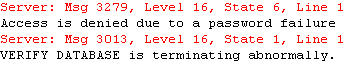
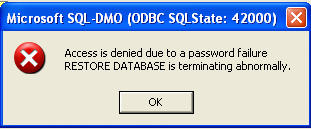
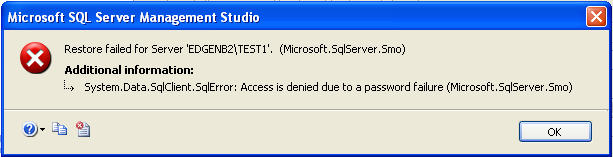
When trying to use the GUI to do a restore, if the backup is password protected you will get these error messages:
SQL 2000
SQL 2005
Take a look at using passwords to protect your backup files. Although it does not offer the highest degree of security it does at least offer one additional hurdle someone will need to overcome in order to do the restore.
Next Steps
  • Although this does add a level of security if someone really wants to crack the passwords they will find a way, so look for additional ways to secure your data
  • You should make sure your backup files are not in a location that is easily accessible to people that should not have access to these files
  • Make sure that people do not have the ability to create backup files if they are not supposed to.  The password option has be issued, so if someone can create a backup without the password and they can easily do a restore too.
  • Keep your passwords in a secure place.  If you don't remember the password you will not be able to restore the backup file.

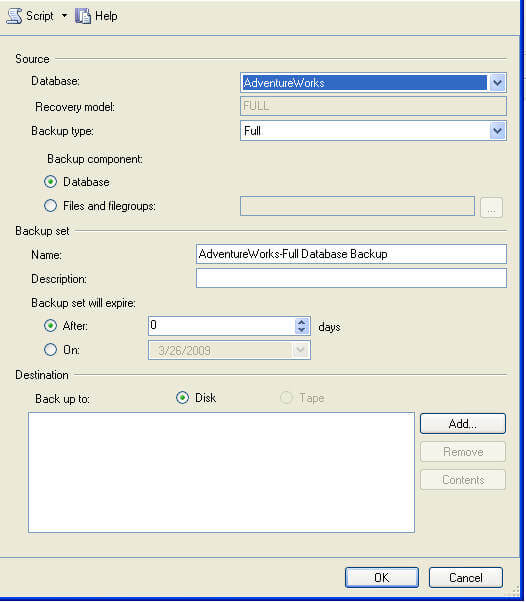
Creating a backup using SQL Server Management Studio

Creating backups using SQL Server Management Studio is pretty simple as well.  Based on how simple the T-SQL commands are, there is a lot of clicking that needs to occur in SSMS to create a backup.
ExplanationThe following screen shots show you how to create a full backup and a transaction log backup.
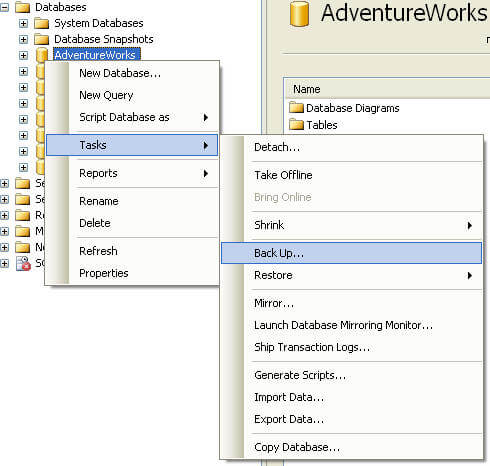
  • Expand the "Databases" tree
  • Right click on the database name you want to backup
  • Select "Tasks" then "Back Up..." as shown below
  • Specify the "Backup type"; Full, Differential or Transaction Log
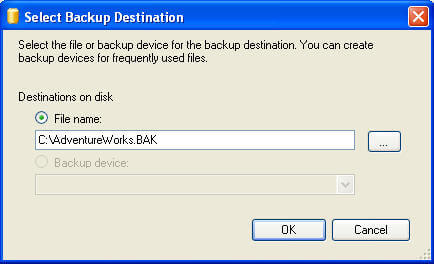
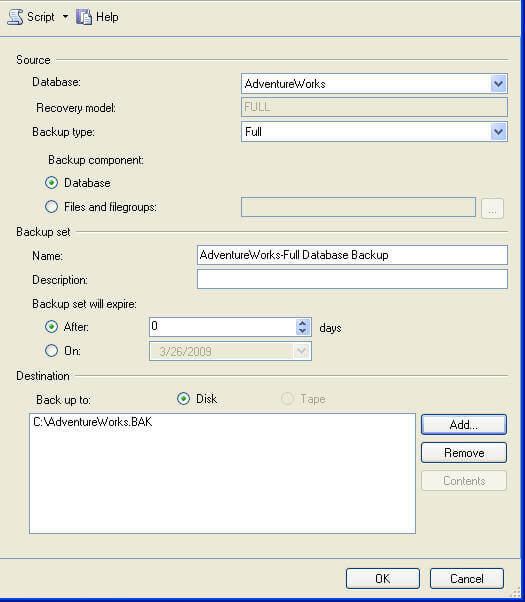
  • Click on "Add..." to add the location and the name of the backup file
  • Click "OK" to close this screen
  • And click "OK" again to create the backup

Backup Monitoring and Reporting( Using Microsoft SSIS)

Database recovery is a core task of database administration and is defined as executing the tasks necessary to backup, save, retrieve and restore databases from hardware, software and user error. Your database recovery procedures should be documented and regularly tested by restoring either a full or random sample of backups. A key part of database backups is monitoring whether backups are in fact occurring. A common mistake in backup monitoring is only checking for backup success or failure when there are in fact three possible outcomes; success, failure and nothing. What is nothing? Nothing is what happens when a database or entire SQL instance for that matter is not configured for backups or the SQL Agent job or Windows services which are often a part of 3rd tools are in a hung state. In order to achieve effective backup monitoring you need to look at the non-event of a lack of backup rather than failed backup messages. Regardless of how a database is backed up, whether through SQL Server native backups or any one of a number of commercial backup software a row is written to the msdb.backupset table. Knowing this information, you can create daily monitoring and backup reports.

 Monitoring Daily Backups

Monitoring daily backups is simple, the following query will find all databases that have not been backed up within the past day:
SELECT MAX(ISNULL(DATEDIFF(dd,ISNULL(b.backup_start_date, '01/01/1900'),GETDATE()),0)) AS 'NumDays'
, d.name as 'DBName'
FROM master..sysdatabases d 
LEFT JOIN msdb..backupset b ON d.name = b.database_name
AND b.backup_start_date = (SELECT MAX(backup_start_date)
FROM msdb..backupset b2
WHERE b.database_name = b2.database_name AND b2.type IN ('D','I'))
WHERE d.name != 'tempdb'
--AND d.name NOT IN (SELECT db_name FROM dbautility.dbo.db_exclude)
AND DATABASEPROPERTYEX(d.name, 'Status') = 'ONLINE'
GROUP BY d.name, b.type, b.backup_size
HAVING MAX(ISNULL(DATEDIFF(dd,ISNULL(b.backup_start_date, '01/01/1900'),GETDATE()),0)) > 1
You can automate daily backup monitoring using the above query through SQL Agent or Microsoft Operations Manager/System Center Operations Manager. An important consideration for any monitoring solution is the ability to add exclusions. To implementation an exclusions create a db_exclude table; populate the table with any databases you wish to exclude and uncomment "AND d.name NOT IN (SELECT db_name FROM dbautility.dbo.db_exclude)" in line above.

Reporting Backup Information

In addition to monitoring daily backups you can also report backup events across servers and databases over different periods of times. If like many large organizations, your backup responsibilities are performed by a group other than your DBAs; creating a backup report is especially important in order to ensure any operating level agreements (OLAs) you have are being met. To create a backup report you will need to define a collection process to centralize backup information and create a few SQL Server Reporting Services (SSRS) reports to present the data.

Getting Started

Overview
  1. Create tables using backdw.tables.sql
  2. Create fnSeqDates function
  3. Populate server_dim, exclude_db_dim and dt_dim tables
  4. Create procedures using backup.routines.sql
The download section of this article includes a setup of scripts for creating database objects needed for generating a consolidated report. To get started, create a database in this example, the article uses BackupDW. Then run the code in BackupDW.tables.sql to create the tables. The script will create the following six tables which will be used for collecting and reporting backup information: 


You'll need to populate lookup/control tables: server_dim, dt_dim and db_exclude_dim. The remaining tables will be loaded through the collection process. Add servers to the server_dim table for each server you wish to collect backup information. For example the following code adds the Z001\Sql1 server:
insert server_dim (server_name) values ('Z001\Sql1')
Next add the server and databases you wish to exclude from analysis to the db_exclude_dim table. To populate the dt_dim we'll make use of the fnSeqDates function created by Peter Larsson as described in his article How many more Mondays until I retire?. Note, the dt_dim table contains two columns window_start_dtm and window_end_dtm which are used to determine the backup window for a given date. The query uses 6 PM, DATEADD(hh,18,SeqDate) as the window_start_dtm and 6 AM, DATEADD(hh,30,SeqDate) as the window_end_dtm. And for Fridays the query defines the backup window from Friday 6 PM through Monday 6 AM, DATEADD(hh,78,SeqDate). Your backup window may vary, adjust the CASE statement as needed. Create the fnSeqDates function in the backupdw database and run the following code to populate the dt_dim table adjusting the begin and end dates as well as the start and end date time calculations as desired.
insert dt_dim
select CAST(SeqDate AS int),
SeqDate,
DATEPART(yy,SeqDate), 
DATEPART(qq,SeqDate), 
DATEPART(mm,SeqDate),
DATEPART(dd,SeqDate),
DATEPART(wk,SeqDate),
DATEPART(dw, SeqDate),
DATEADD(hh,18,SeqDate),
CASE
WHEN DATEPART(dw,SeqDate) BETWEEN 2 AND 5 THEN DATEADD(hh,30,SeqDate)
WHEN DATEPART(dw,SeqDate) = 6 THEN DATEADD(hh,78,SeqDate)
END, 0, 0
from fnSeqDates('2008-01-01','2010-01-01')
Two additional interesting pieces of information include; whether the particular week is Microsoft patch week i.e. the week falls on the second Tuesday of the month and whether a particular day is a holiday. Run the following code to update the dt_dim table with Microsoft patch week information:
update dt_dim
set isMSPatchWk = 1
WHERE wk in 
(SELECT MIN(wk) 
FROM dt_dim
WHERE dw = 3 AND dd > 7
GROUP BY mm)
Update holiday information with the following code:
update dt_dim
set isHoliday = 1
WHERE dt in ('2009-01-01', '2009-01-19', '2009-02-16', '2009-04-10', '2009-05-25', '2009-07-03',
'2009-09-07', '2009-11-26', '2009-12-25')
Next create the following procedures in by running the backupdw.routines.sql script in the accompanying download:
  • dbo.insert_backup_fact_sp
  • dbo.merge_db_dim_sp
  • dbo.update_backup_fact_sp
  • dbo.update_server_dim_sp
  • dbo.usp_backup_analysis_detail
  • dbo.usp_backup_analysis_rpt
The data will be collected by a Powershell script, backupAnalysis.ps1 and you'll need to change the following variables in the Powershell script to reflect the server and database name where the data will be stored: The following excerpt from, backupAnalysis.ps1 sets the server name and database name variables:
$destServer = 'Z002\SQL2'
$destdb = 'backupdw'

Collecting the Data

Overview
  1. Run Powershell script backupAnalysis.ps1
  2. Execute update_server_dim_sp
  3. Execute merge_db_dim_sp
  4. Execute insert_backup_fact_sp
  5. Execute update_backup_fact_sp
  6. Schedule SQL Agent to automate steps one through six.
To collect the data run the Powershell script from a Powershell console:
./backupAnalysis.ps1
The script executes the following query on the target server to load the data into the centralized server backupset_dim table:
SELECT @@servername, backup_set_id, database_name, backup_start_date, backup_finish_date, user_name,type
FROM backupset
WHERE type IN ('D','I')
AND backup_start_date > '2008-01-01'
AND backup_set_id > $backup_set_id
The value of backup_set_id is passed to the script from the server_dim.max_backup_set_id column. This way only new backup rows are collected on each run. The Powershell, script could just as easily be replaced with an SSIS package or linked server calls, but for simple ETL process Powershell works very well.

Next run update_server_dim_sp to update the max_backup_set_id column. Then run merge_db_dim_sp to insert new databases and update existing database information in the db_dim table. Insert the backup_fact rows by runninginsert_backup_fact_sp. Finally run update_backup_fact_sp which will update the success flag and username columns. Note: Determining whether a date's backup is successful requires considering the backup window, if a backup occurs outside the backup window, the backup is not counted as a success. You can adjust the backup window columns in the dt_dim table as needed.

In order to automate and schedule the data collection process a SQL job creation script, BackupDW.Jobs.sql is included with the article download. You'll need to modify the location of the Powershell script in the first job step for your environment.

Queries

After collecting you can easily create some very interesting queries using different date parts and grouping levels. The following are several examples. Note: A BackupDay is defined as a day on which you should have a backup and successfulBackups are days in which there were in fact a successful backup. The PercentSuccessful is calculated by dividing the successful backups by the total backup days.
Overall backup success for the time period
SELECT count(*) as TotalBackupDays, sum(CAST(isSuccess AS int)) as SuccessfulBackups,
round(sum(CAST(isSuccess AS float))/count(*) * 100,2) As PercentSuccessful
FROM backup_fact f
JOIN dt_dim d ON f.dt_id = d.dt_id
WHERE dt BETWEEN '2009-01-02' AND '2009-03-31'
Overall backup success by month
SELECT yy, mm,
count(*) as TotalBackupDays , sum(CAST(isSuccess AS int)) as SuccessfulBackups,
round(sum(CAST(isSuccess AS float))/count(*) * 100,2) As PercentSuccessful
FROM backup_fact f 
JOIN dt_dim d 
ON f.dt_id = d.dt_id 
WHERE dt BETWEEN '2009-01-02' AND '2009-03-31'
Overall backup success by week
SELECT yy, mm, wk,
count(*) as TotalBackupDays, sum(CAST(isSuccess AS int)) as SuccessfulBackups,
round(sum(CAST(isSuccess AS float))/count(*) * 100,2) As PercentSuccessful
FROM backup_fact f 
JOIN dt_dim d 
ON f.dt_id = d.dt_id 
WHERE dt BETWEEN '2009-01-02' AND '2009-03-31'
GROUP BY yy, mm, wk
Overall backup success by weekday
SELECT dw,
count(*) as TotalBackupDays, sum(CAST(isSuccess AS int)) as SuccessfulBackups,
round(sum(CAST(isSuccess AS float))/count(*) * 100,2) As PercentSuccessful
FROM backup_fact f 
JOIN dt_dim d 
ON f.dt_id = d.dt_id 
WHERE dt BETWEEN '2009-01-02' AND '2009-03-31'
GROUP BY dw 
Any of the above queries can be modified to report by server or by database. The following is an example by server for a specified time period
SELECT server_name, 
count(*) as TotalBackupDays, sum(CAST(isSuccess AS int)) as SuccessfulBackups,
round(sum(CAST(isSuccess AS float))/count(*) * 100,2) As PercentSuccessful
FROM backup_fact f 
JOIN dt_dim d 
ON f.dt_id = d.dt_id
WHERE dt BETWEEN '2009-01-02' AND '2009-03-31'
GROUP BY server_name 
To simplify the various reporting options, a stored procedure, usp_backup_analysis_rpt is included with the download. Using the procedure you can run any of the above queries and specify different grouping levels. The procedure accepts the following parameters:
usp_backup_analysis_rpt
ParameterValues
@reportTypeOverall,Server or Database
@reportIntervalALL, Month, Week, Weekday
@start_dtdate
@end_dtdate

Reporting

The following reports are included in the download section of the article:
Reports
BackupDWDetailExecutes procedure dbo.usp_backup_analysis_detail providing detailed level report of backup information
BackupDWDetailExecutes procedure dbo.usp_backup_analysis_rpt providing summary information at the all, weekly, monthly and weekday level. Report is summarized by server, database or overall level.
To configure the reports open the Solution file, BackupAnalysis.sln in Visual Studio 2005 (VS) or SQL Server Business Intelliegence Studio (BIDS) and change the shared data source to your server and database name. Having completed the setup, data collection and report configuration you can generate the reports. You can run the reports locally through VS or BIDS or deploy the reports to SQL Server Reporting Services Server. The following are several sample reports, selecting various reporting options.
Overall backup report:


By Server backup report

By database backup report


Summary
The need to verify your databases are being backed up is a common task for database administrators. You can use the process described in this article to accomplish daily backup monitoring and reporting. You may be surprised to learn your backup success rates in your environment.
SQL Server Complete Over View Details Query 

Query to find Daily backup Status, data,log,Total Size and other Useful information of all databases – SQL 2000/2005/2008/R2

Method :1Find out the database file,log file, total size and other useful information about a database on SQL Server 2000/2005/2008/R2 versions. The requirement is to use same query and it has to be executed across all version of SQL SERVER.  We can  also do this using dynamic SQL’s.
Here is the T-SQL which you can use to run on any version of SQL Server to fetch the result.

USE MASTER
Go

SELECT @@SERVERNAME Servername,@@VERSION SQLVersion,
CONVERT(VARCHAR(25), DB.name) AS dbName,
CONVERT(VARCHAR(25), suser_sname(sid)) AS dbOwner,
filename AS FileName,
CONVERT(VARCHAR(10), DATABASEPROPERTYEX(name, 'status')) AS [Status],
(SELECT COUNT(1) FROM sysaltfiles WHERE DB_NAME(dbid) = DB.name AND groupid !=0 ) AS DataFiles,
(SELECT SUM((size*8)/1024) FROM sysaltfiles WHERE DB_NAME(dbid) = DB.name AND groupid!=0) AS [Data MB],
(SELECT COUNT(1) FROM sysaltfiles WHERE DB_NAME(dbid) = DB.name AND groupid=0) AS LogFiles,
(SELECT SUM((size*8)/1024) FROM sysaltfiles WHERE DB_NAME(dbid) = DB.name AND groupid=0) AS [Log MB],
(SELECT SUM((size*8)/1024) FROM sysaltfiles WHERE DB_NAME(dbid) = DB.name AND groupid!=0)+(SELECT SUM((size*8)/1024) FROM sysaltfiles WHERE DB_NAME(dbid) = DB.name AND groupid=0) TotalSizeMB,
convert(sysname,DatabasePropertyEx(name,'Updateability')) Updateability,
convert(sysname,DatabasePropertyEx(name,'UserAccess')) UserAccess ,
convert(sysname,DatabasePropertyEx(name,'Recovery')) RecoveryModel ,
convert(sysname,DatabasePropertyEx(name,'Version')) Version ,
CASE cmptlevel
WHEN 60 THEN '60 (SQL Server 6.0)'
WHEN 65 THEN '65 (SQL Server 6.5)'
WHEN 70 THEN '70 (SQL Server 7.0)'
WHEN 80 THEN '80 (SQL Server 2000)'
WHEN 90 THEN '90 (SQL Server 2005)'
WHEN 100 THEN '100 (SQL Server 2008)'
END AS [compatibility level],
CONVERT(VARCHAR(20), crdate, 103) + ' ' + CONVERT(VARCHAR(20), crdate, 108) AS [Creation date],
ISNULL((SELECT TOP 1
CASE TYPE WHEN 'D' THEN 'Full' WHEN 'I' THEN 'Differential' WHEN 'L' THEN 'Transaction log' END + ' – ' +
LTRIM(ISNULL(STR(ABS(DATEDIFF(DAY, GETDATE(),Backup_finish_date))) + ' days ago', 'NEVER')) + ' – ' +
CONVERT(VARCHAR(20), backup_start_date, 103) + ' ' + CONVERT(VARCHAR(20), backup_start_date, 108) + ' – ' +
CONVERT(VARCHAR(20), backup_finish_date, 103) + ' ' + CONVERT(VARCHAR(20), backup_finish_date, 108) +
' (' + CAST(DATEDIFF(second, BK.backup_start_date,
BK.backup_finish_date) AS VARCHAR(4)) + ' '+ 'seconds)'
FROM msdb.dbo.backupset BK WHERE BK.database_name = DB.name ORDER BY backup_set_id DESC),'-') AS [Last backup]
FROM sysdatabases DB
ORDER BY dbName, [Last backup] DESC, NAME 
OUTPUT:


Method :2


USE AdventureWorks
GO
-- Get Backup History for required database
SELECT TOP 100
s.database_name,
m.physical_device_name,
CAST(CAST(s.backup_size / 1000000 AS INT) AS VARCHAR(14)) + ' ' + 'MB' AS bkSize,
CAST(DATEDIFF(second, s.backup_start_date,
s.backup_finish_date) AS VARCHAR(4)) + ' ' + 'Seconds' TimeTaken,
s.backup_start_date,
CAST(s.first_lsn AS VARCHAR(50)) AS first_lsn,
CAST(s.last_lsn AS VARCHAR(50)) AS last_lsn,
CASE s.[type]
WHEN 'D' THEN 'Full'
WHEN 'I' THEN 'Differential'
WHEN 'L' THEN 'Transaction Log'
END AS BackupType,
s.server_name,
s.recovery_model
FROM msdb.dbo.backupset s
INNER JOIN msdb.dbo.backupmediafamily m ON s.media_set_id = m.media_set_id
WHERE s.database_name = DB_NAME() -- Remove this line for all the database
ORDER BY backup_start_date DESC, backup_finish_date
GO
Method :3

Database Backup from different view points.To get the List/History/Log of all the Successful Backups:
SELECT 
  b.machine_name,
  b.server_name,
  b.database_name as DBName,
  b.backup_start_date,
  b.backup_finish_date,
  CASE 
    WHEN b.[type] = 'D' THEN 'Database'
    WHEN b.[type] = 'I' THEN 'Differential database'
    WHEN b.[type] = 'L' THEN 'Log'
    WHEN b.[type] = 'F' THEN 'File or filegroup'
    WHEN b.[type] = 'G' THEN 'Differential file'
    WHEN b.[type] = 'P' THEN 'Partial'
    WHEN b.[type] = 'Q' THEN 'Differential partial'
    ELSE b.[type]
  END Backup_Type,    
  b.expiration_date,
  b.[user_name],
  DATEDIFF(MINUTE,b.backup_start_date ,b.backup_finish_date) as Total_Time_in_Minute,
  b.recovery_model,
  b.backup_size/(1024 * 1024 * 1024) as Total_Size_GB,
  bf.physical_device_name as Location
FROM 
  msdb.dbo.backupset AS b
INNER JOIN msdb.dbo.backupmediafamily AS bf
  ON b.media_set_id=bf.media_set_id
ORDER BY 
  b.backup_start_date DESC
GO

To get a list of all successful Backups taken till date for a particular Database:
DECLARE @DBName AS VARCHAR(100) = 'Your Database Name'
SELECT 
  b.machine_name,
  b.server_name,
  b.database_name as DBName,
  b.backup_start_date,
  b.backup_finish_date,
  CASE 
    WHEN b.[type] = 'D' THEN 'Database'
    WHEN b.[type] = 'I' THEN 'Differential database'
    WHEN b.[type] = 'L' THEN 'Log'
    WHEN b.[type] = 'F' THEN 'File or filegroup'
    WHEN b.[type] = 'G' THEN 'Differential file'
    WHEN b.[type] = 'P' THEN 'Partial'
    WHEN b.[type] = 'Q' THEN 'Differential partial'
    ELSE b.[type]
  END Backup_Type,
  b.expiration_date,
  b.[user_name],
  DATEDIFF(MINUTE,b.backup_start_date ,b.backup_finish_date) as Total_Time_in_Minute,
  b.recovery_model,
  b.backup_size/(1024 * 1024 * 1024) as Total_Size_GB,
  bf.physical_device_name as Location
FROM 
  msdb.dbo.backupset AS b
INNER JOIN msdb.dbo.backupmediafamily AS bf
  ON b.media_set_id=bf.media_set_id
WHERE
  b.database_name = @DBName  
ORDER BY 
  b.backup_start_date DESC
GO

To get the List of all Databases which are not backed up till date:
SELECT
  d.name [DB_Name]
FROM
  master.sys.databases d
LEFT JOIN msdb.dbo.backupset b
  ON b.database_name = d.name
WHERE
  d.database_id IS NULL
To get the List of all Databases which are not backed up since last X days
DECLARE @LastXDays AS INT = 1
;WITH LatestBackupSet AS (
SELECT 
  b.database_name as DBName,
  b.backup_start_date LastBackedUpOn,
  b.[user_name],
  ROW_NUMBER() OVER(PARTITION BY b.database_name ORDER BY b.backup_start_date DESC) Rnk
FROM 
  msdb.dbo.backupset AS b
)
SELECT 
  lbs.DBName,
  lbs.LastBackedUpOn,
  lbs.[user_name]
FROM 
  LatestBackupSet AS lbs
WHERE
  DATEDIFF(DAY,lbs.LastBackedUpOn ,CURRENT_TIMESTAMP) = @LastXDays  
  AND lbs.Rnk = 1
ORDER BY 
  lbs.DBName DESC
GO

To get a list of the Latest successful backups of all Databases:
;WITH LatestBackupSet AS (
SELECT 
  b.machine_name,
  b.server_name,
  b.database_name as DBName,
  b.backup_start_date,
  b.backup_finish_date,
  CASE 
    WHEN b.[type] = 'D' THEN 'Database'
    WHEN b.[type] = 'I' THEN 'Differential database'
    WHEN b.[type] = 'L' THEN 'Log'
    WHEN b.[type] = 'F' THEN 'File or filegroup'
    WHEN b.[type] = 'G' THEN 'Differential file'
    WHEN b.[type] = 'P' THEN 'Partial'
    WHEN b.[type] = 'Q' THEN 'Differential partial'
    ELSE b.[type]
  END Backup_Type,
  b.expiration_date,
  b.[user_name],
  DATEDIFF(MINUTE,b.backup_start_date ,b.backup_finish_date) as Total_Time_in_Minute,
  b.recovery_model,
  b.backup_size/(1024 * 1024 * 1024) as Total_Size_GB,
  bf.physical_device_name as Location,
  ROW_NUMBER() OVER(PARTITION BY b.database_name ORDER BY b.backup_start_date DESC) Rnk
FROM 
  msdb.dbo.backupset AS b
INNER JOIN msdb.dbo.backupmediafamily AS bf
  ON b.media_set_id=bf.media_set_id
)
SELECT 
  machine_name,
  server_name,
  DBName,
  backup_start_date,
  backup_finish_date,
  Backup_Type,
  expiration_date,
  [user_name],
  Total_Time_in_Minute,
  recovery_model,
  Total_Size_GB,
  Location
FROM 
  LatestBackupSet AS lbs
WHERE
  lbs.Rnk = 1
ORDER BY 
  lbs.DBName DESC
GO
To get the Latest successful backup of a particular Database:
DECLARE @DBName AS VARCHAR(100) = 'Your Database Name'
;WITH LatestBackupSet AS (
SELECT 
  b.machine_name,
  b.server_name,
  b.database_name as DBName,
  b.backup_start_date,
  b.backup_finish_date,
  CASE 
    WHEN b.[type] = 'D' THEN 'Database'
    WHEN b.[type] = 'I' THEN 'Differential database'
    WHEN b.[type] = 'L' THEN 'Log'
    WHEN b.[type] = 'F' THEN 'File or filegroup'
    WHEN b.[type] = 'G' THEN 'Differential file'
    WHEN b.[type] = 'P' THEN 'Partial'
    WHEN b.[type] = 'Q' THEN 'Differential partial'
    ELSE b.[type]
  END Backup_Type,
  b.expiration_date,
  b.[user_name],
  DATEDIFF(MINUTE,b.backup_start_date ,b.backup_finish_date) as Total_Time_in_Minute,
  b.recovery_model,
  b.backup_size/(1024 * 1024 * 1024) as Total_Size_GB,
  bf.physical_device_name as Location,
  ROW_NUMBER() OVER(PARTITION BY b.database_name ORDER BY b.backup_start_date DESC) Rnk
FROM 
  msdb.dbo.backupset AS b
INNER JOIN msdb.dbo.backupmediafamily AS bf
  ON b.media_set_id=bf.media_set_id
WHERE
  b.database_name = @DBName  
)
SELECT 
  machine_name,
  server_name,
  DBName,
  backup_start_date,
  backup_finish_date,
  Backup_Type,
  expiration_date,
  [user_name],
  Total_Time_in_Minute,
  recovery_model,
  Total_Size_GB,
  Location
FROM 
  LatestBackupSet AS lbs
WHERE
  lbs.Rnk = 1
ORDER BY 
  lbs.DBName DESC
GO

To get a list of Databases that were backed-up and do not currently exist:
SELECT
  DISTINCT b.database_name
FROM
  msdb.dbo.backupset b
WHERE
  DB_ID(b.database_name) IS NULL